The dashboard is the first thing you see when you log into OrangeQC. We’ve always wanted it to show you the most important information for your account, all at a glance, to keep you on top of operations.
But everyone on your team has a different definition of “the most important information.” An ops manager, a site supervisor, and a client have different priorities… and those priorities probably don’t stay the same day by day, either.
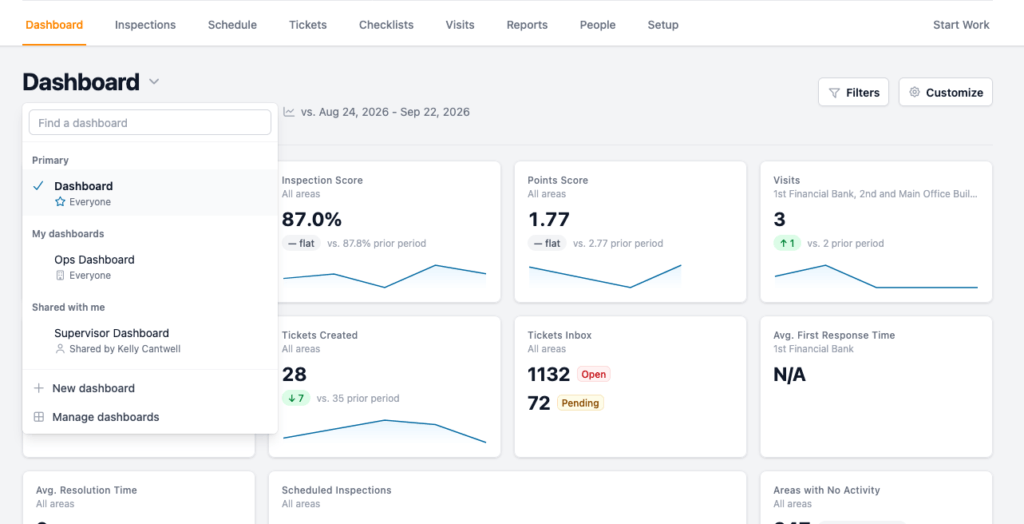
We’ve now added the ability to create as many dashboards as you, your team, and your customers need. Each dashboard can be customized to show the right information for that specific use.
The right data for everyone on your team
Here are a few examples of dashboards your team might create:
- An ops dashboard with ticket metrics and visit data broken into sections by accounts, locations, or teams.
- A supervisor dashboard that focuses on progress on scheduled inspections, cleaning quality scores, and checklist completion by frontline staff.
- A customer dashboard that shows visits, average response time on tickets, and the number of inspections.
- Account-specific dashboards that go deeper into the SLAs or top metrics for each customer.
Each dashboard adjusts based on the user’s access, so they only see information they have permission to see.
How to create new dashboards
If you’ve customized your OrangeQC dashboard before, the process will feel familiar. To add a new dashboard, click the “Dashboard” title and choose “+ New dashboard” from the drop-down menu. Our help guide has step-by-step instructions for creating and managing new dashboards.
If you have any questions or feedback, we really would love to know. We built this feature based on customer requests and want it to be genuinely useful to your team. Email us at support@orangeqc.com.
Not using OrangeQC? We offer a free 30-day trial, no payment info required, so you can try all our features out for yourself. Schedule a demo so we can walk you through the features your team needs.